How to set up Geofenced Job Sites for Attendance
Learn how to set up geofenced job sites for attendance
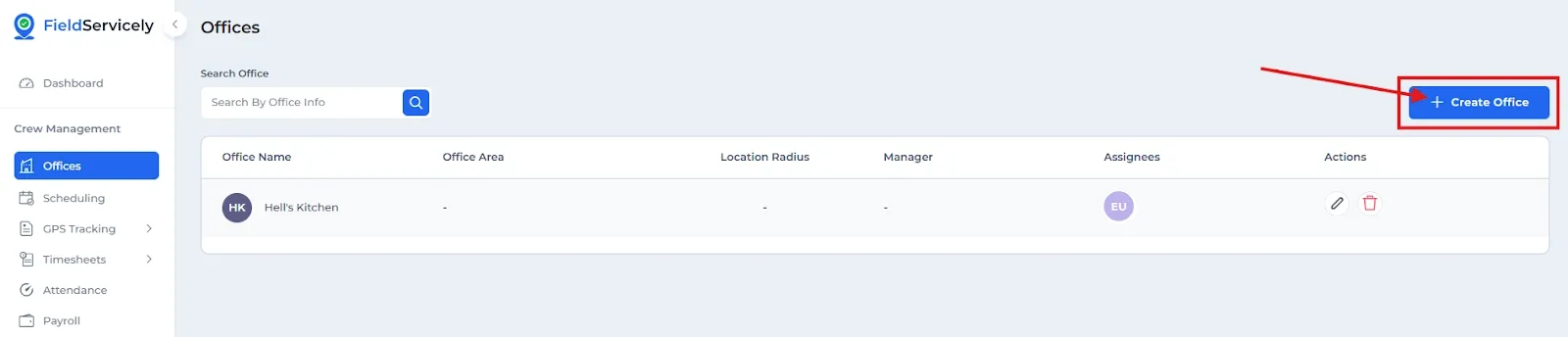
Select “Offices” from the left side panel, from there click on the “+ Create Office” located at the top right corner in order to create a new office. 🏣
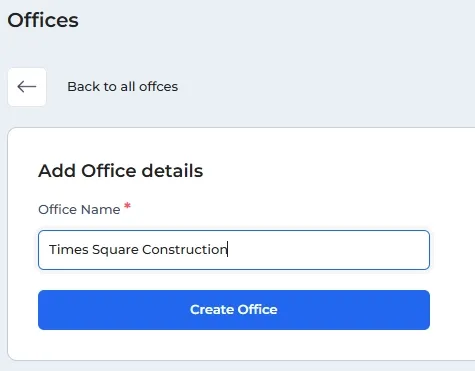
Then, simply enter the desired name of your office then select “Create Office”. As demonstrated below.
Next, add a member/ assignee and click on “+ Add Location” in order to place the desired location for the office.
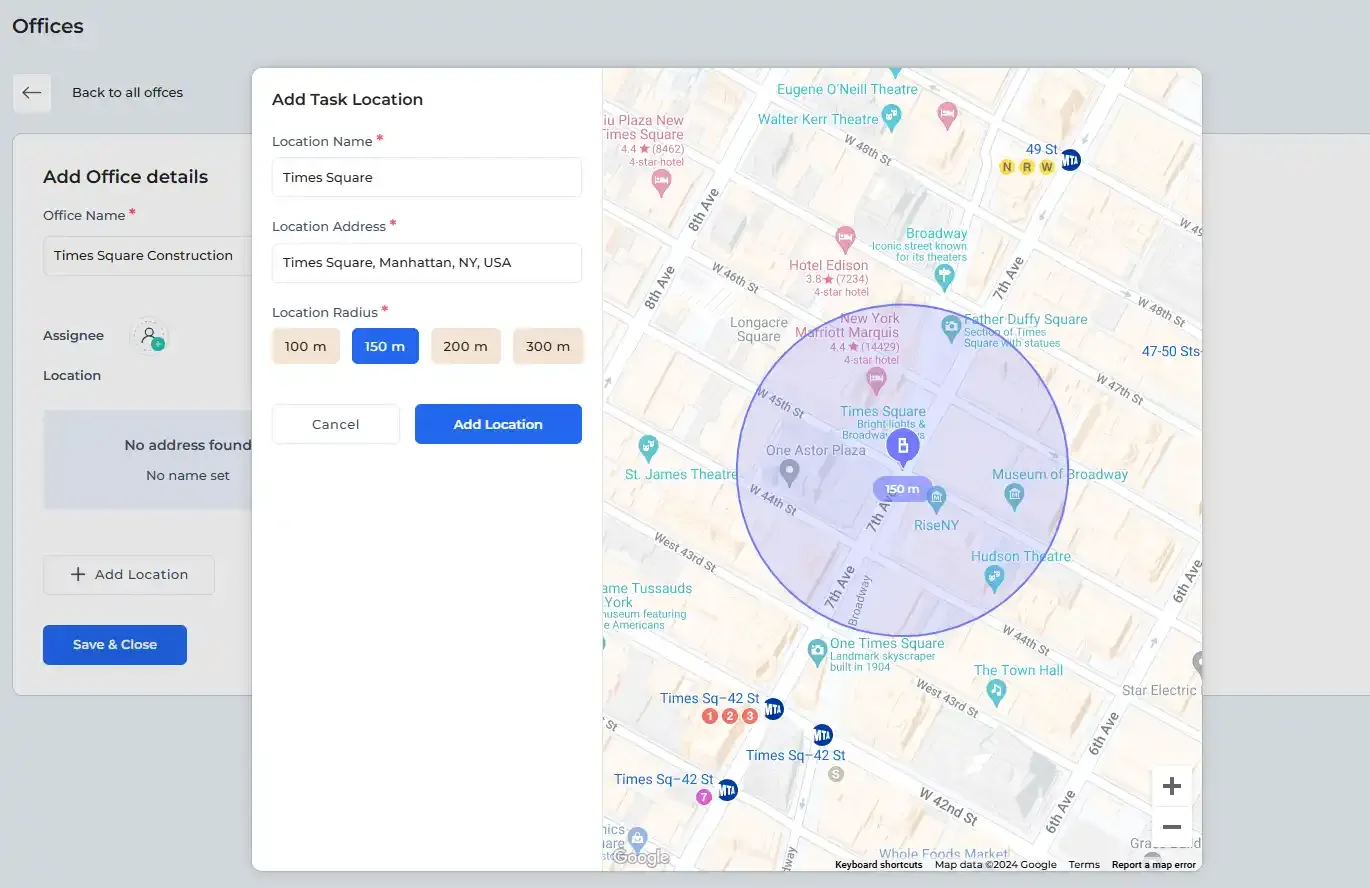
Now provide the address pertaining to the location as well as the desired radius for it.
Once completed, click the “Add Location” button in order to add this location to the office.
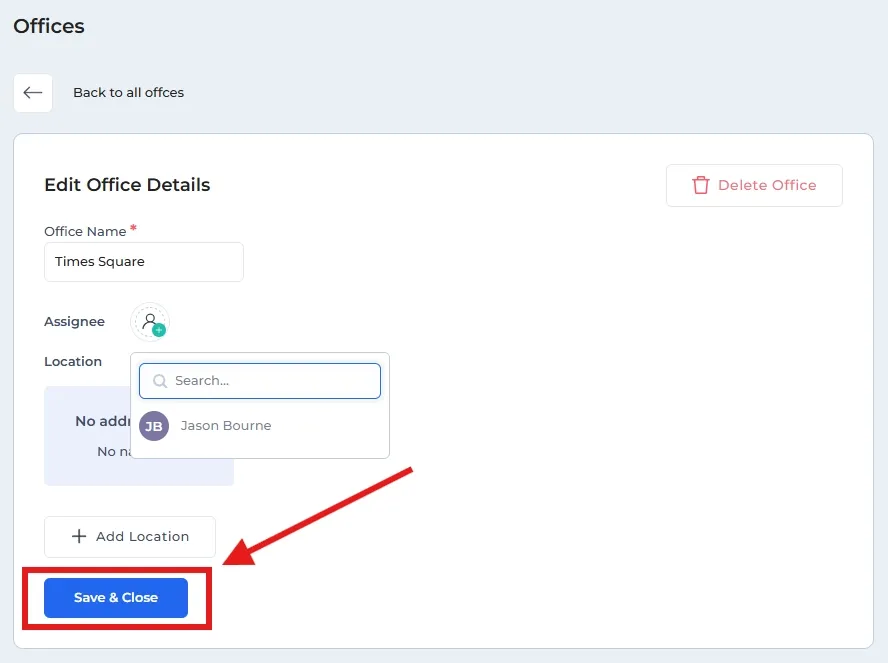
To finalize, select “Save & Close” to save your awesome office information 🎉

FieldServicely Pro Tip
Track your service professional's location and time accurately to ensure precise payroll with no missed or overstated hours.