100% Free GPS Time Clock App
Get Photo Verified, Location-Based Attendance for Free
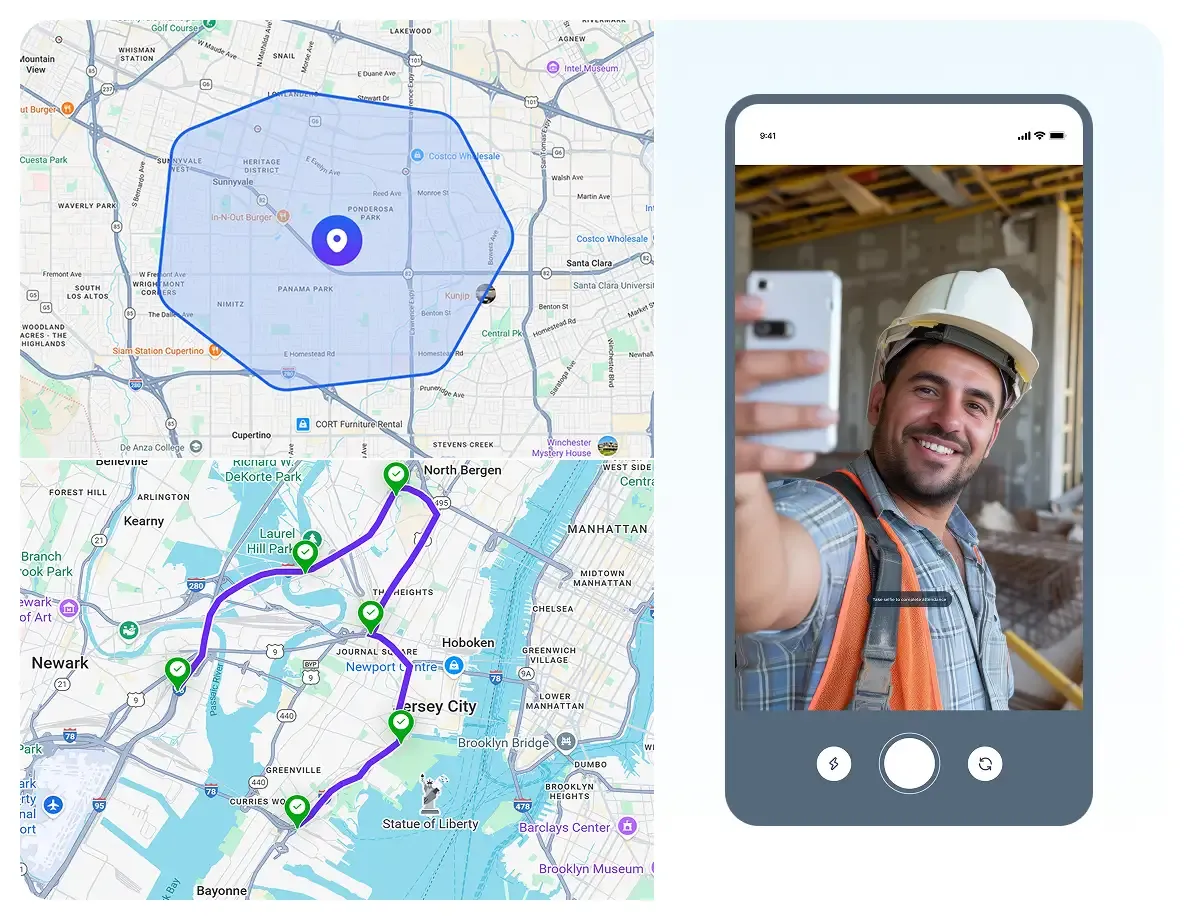
Use geofencing and require a selfie to stop buddy punching. Turn every phone into a GPS time clock to generate payroll-ready, accurate timesheets.

For Field Service Teams
Free Forever
Instant Access
BUILT FOR FIELD TEAMS WHO WORK ACROSS JOB SITES
Employee Time Clock with GPS That Ends Payroll Disputes for Field Teams

Chuck B.
General Superintendent

Time tracking used to be messy for us because our techs move between job sites all day. After switching to GPS-verified clock-ins, we cut payroll fixes by 2 hours every week, and also approvals take way less time back and forth.
Allow Clock-ins Only to the Job Sites Using the Best GPS Time Clock App
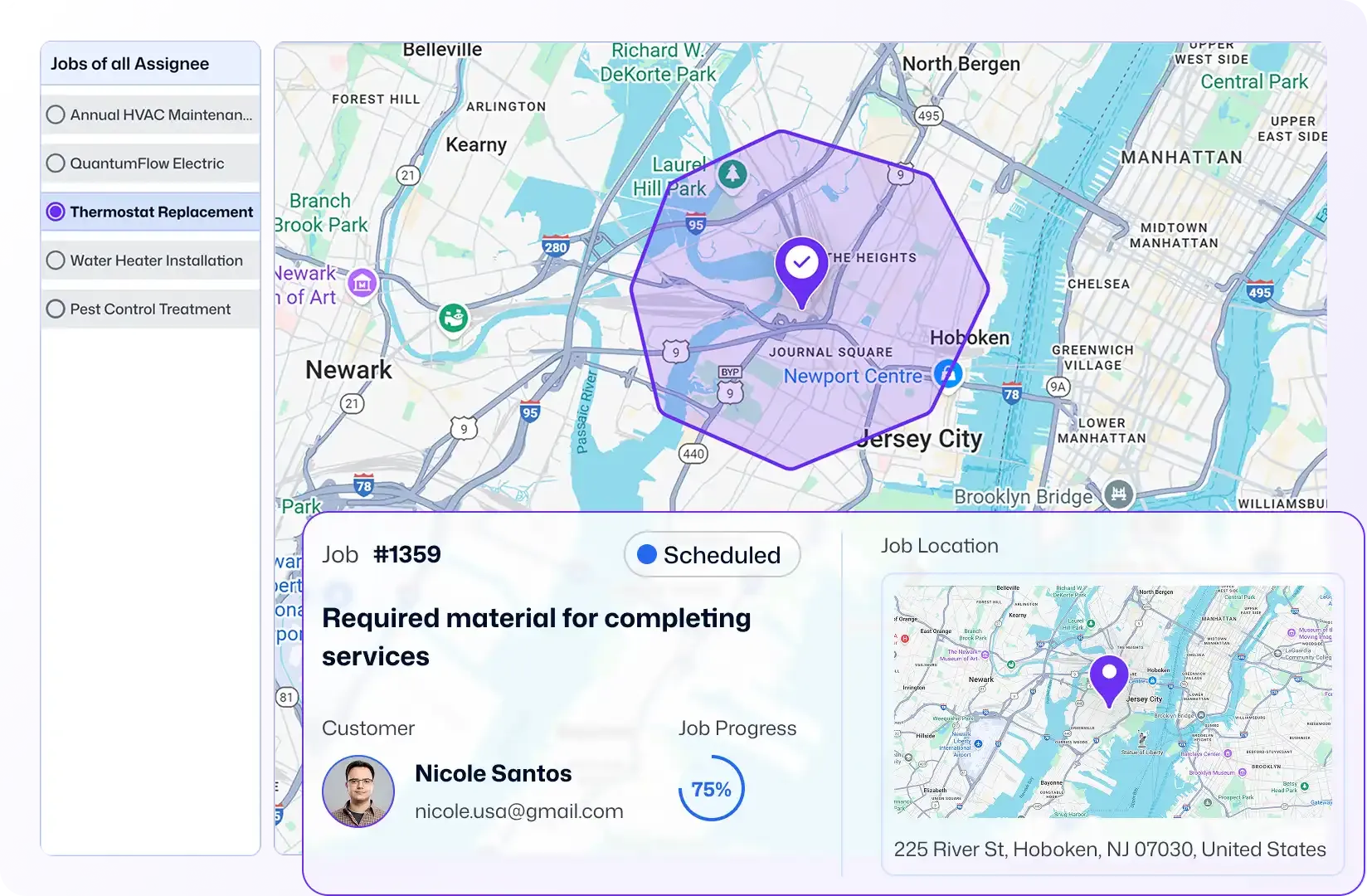
Set up virtual perimeters using the GPS geofencing feature to define job sites. Eliminate time theft by limiting selfie check-ins inside approved areas. Track time and generate timesheets automatically with zero payroll disputes.
Get Complete Visibility on Field Team Productivity with GPS Time Tracker
Mobile GPS Time Clock
Simplify Attendance for a Mobile Workforce
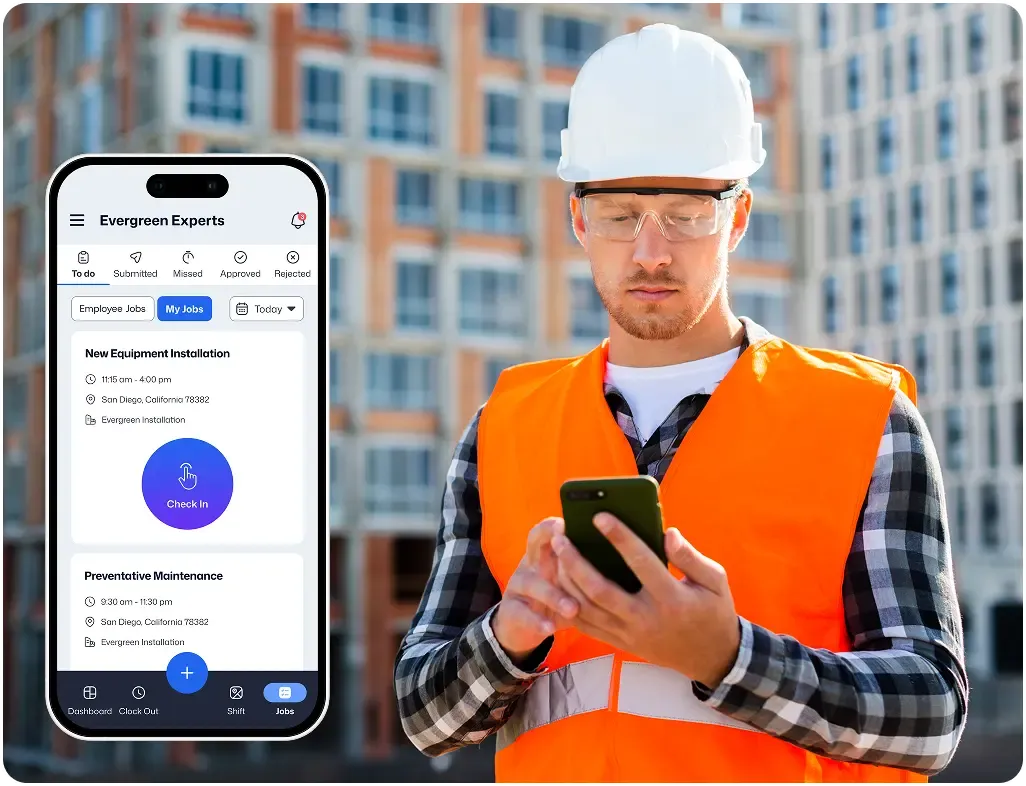
Track time, record clock-ins/outs, breaks, and location data with one GPS clocking and location tracking app.
GPS Geofencing
Stop Time Fraud Using the Time Clock GPS App
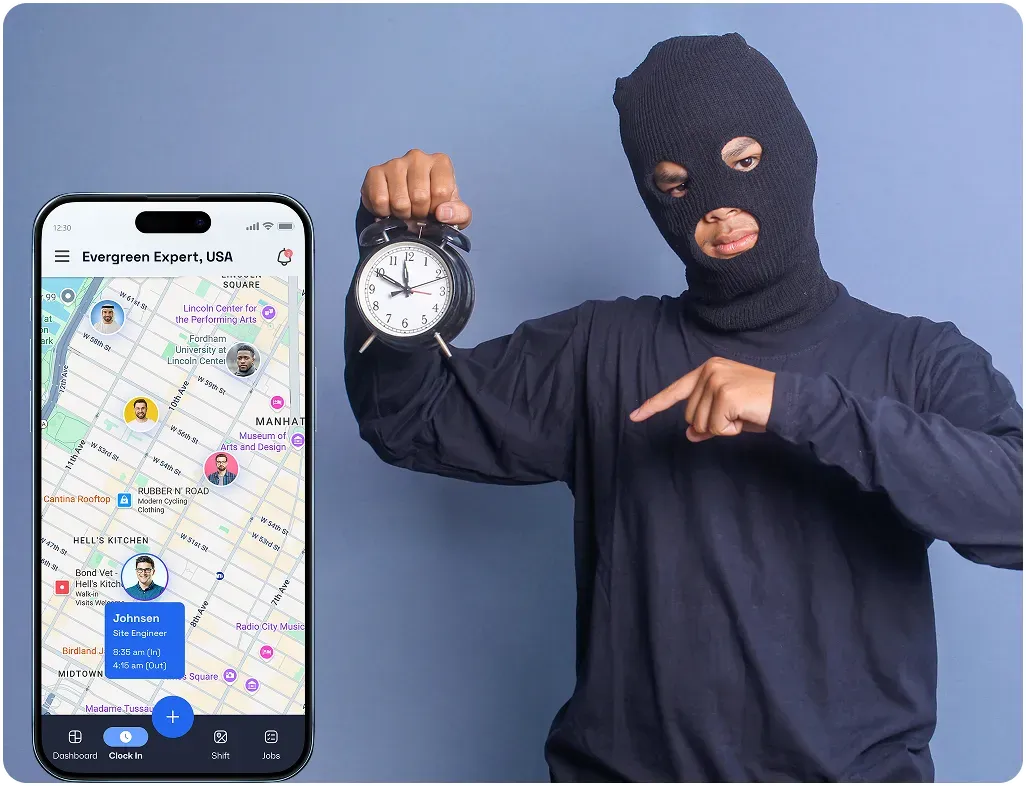
Know who arrives at the job destination and when. Catch missed check-ins early with real-time notifications and approvals.
Instant Employee Visibility
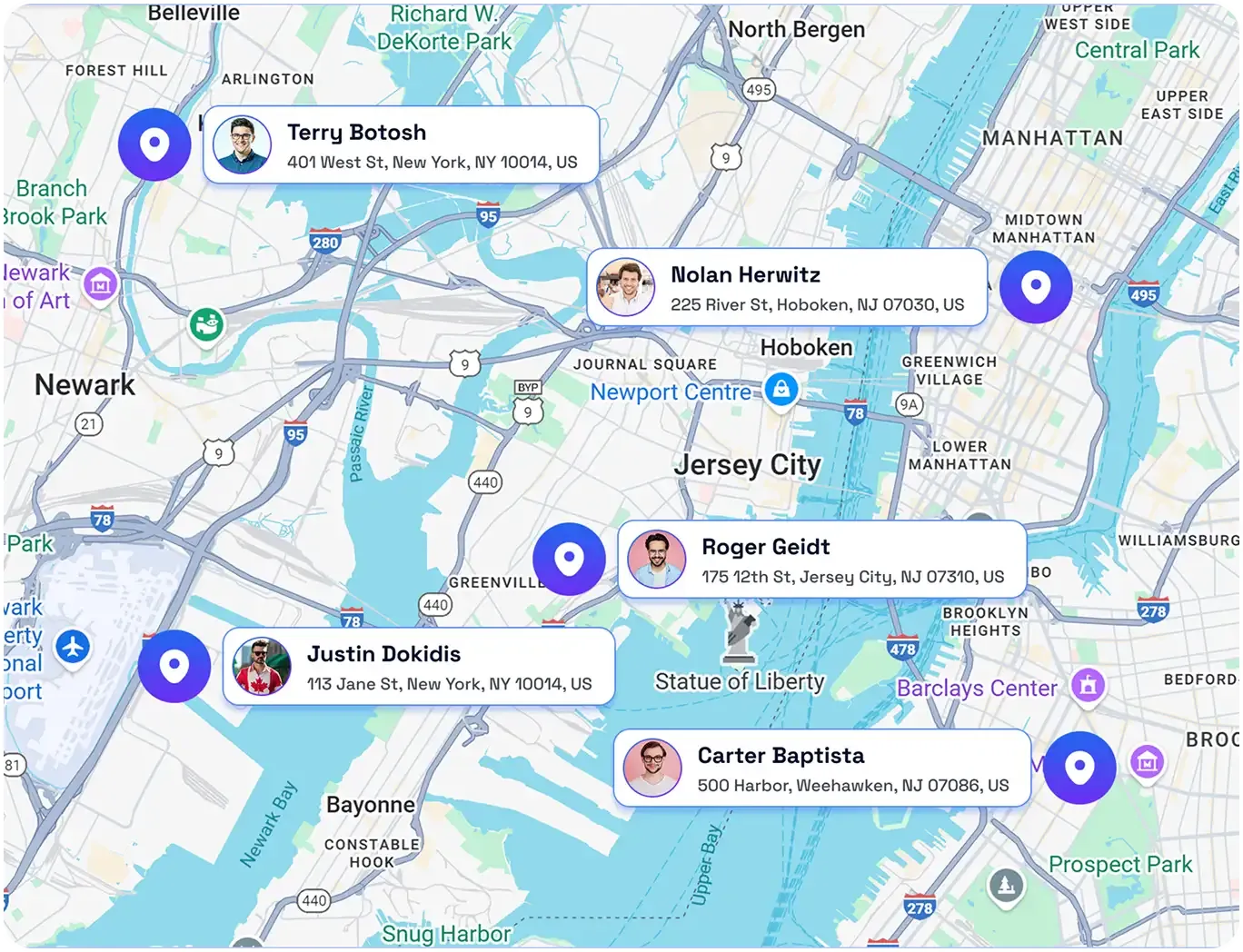
Track Field Team Location with Live Map View
Watch the location of each field worker in real time during work hours. Get updated on their whereabouts through GPS data.
Field Employee Movement Records
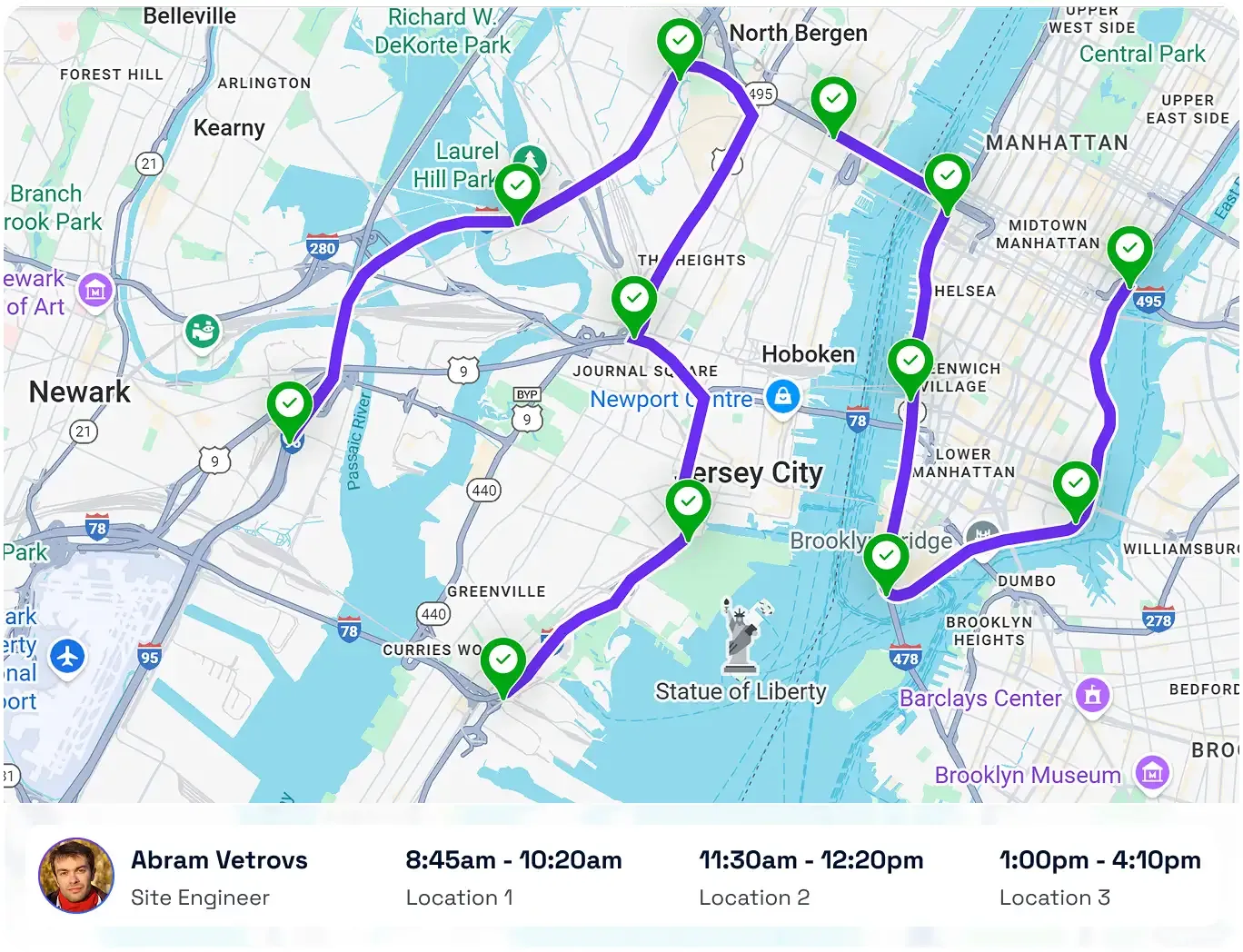
Get the Full History of Job Site Visit in a Workday
Track every job site stop with GPS-stamped clock-ins and location history in one daily timeline.
Offline Time & Location Tracking
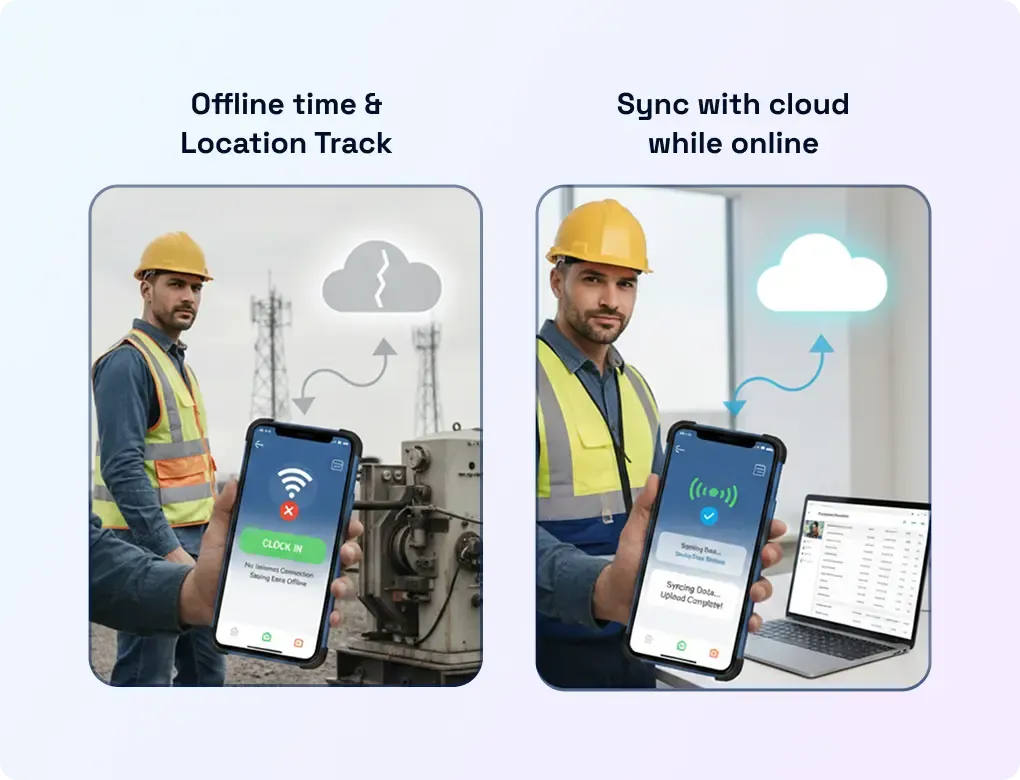
Never Miss Employee Attendance Even without Internet
Let field service workers clock in/out when the connection is limited. The GPS time clock synchronises all the data to the server as soon as the network is restored.
Proof of Work
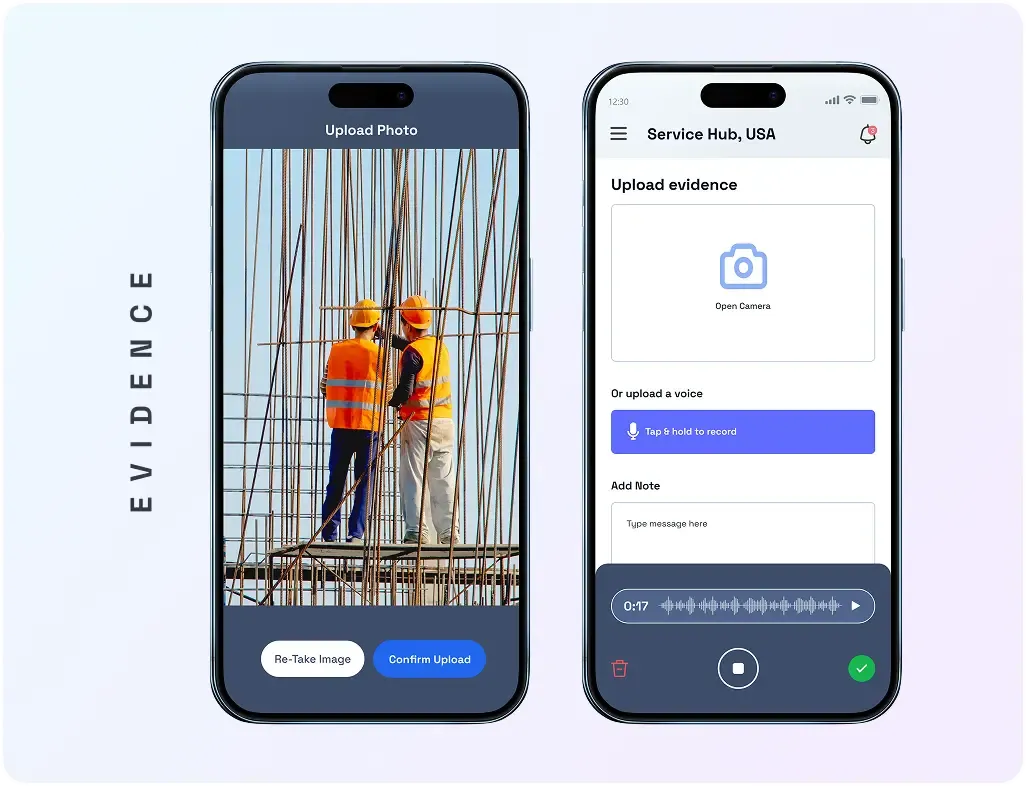
Create a Verifiable Record for Every Job
Require photos for every job completed successfully. Use them to ensure transparency, job approvals, and customer invoicing.
Customer stories
How Teams Like Yours are "Winning"

Mid-market
“We needed a system that gave us control and real-time insight into what was happening on the ground, without chasing people or spreadsheets.”


See FieldServicely in Action
Just schedule a demo and see how FieldServicely makes field operations and job management smarter, faster, and easier.
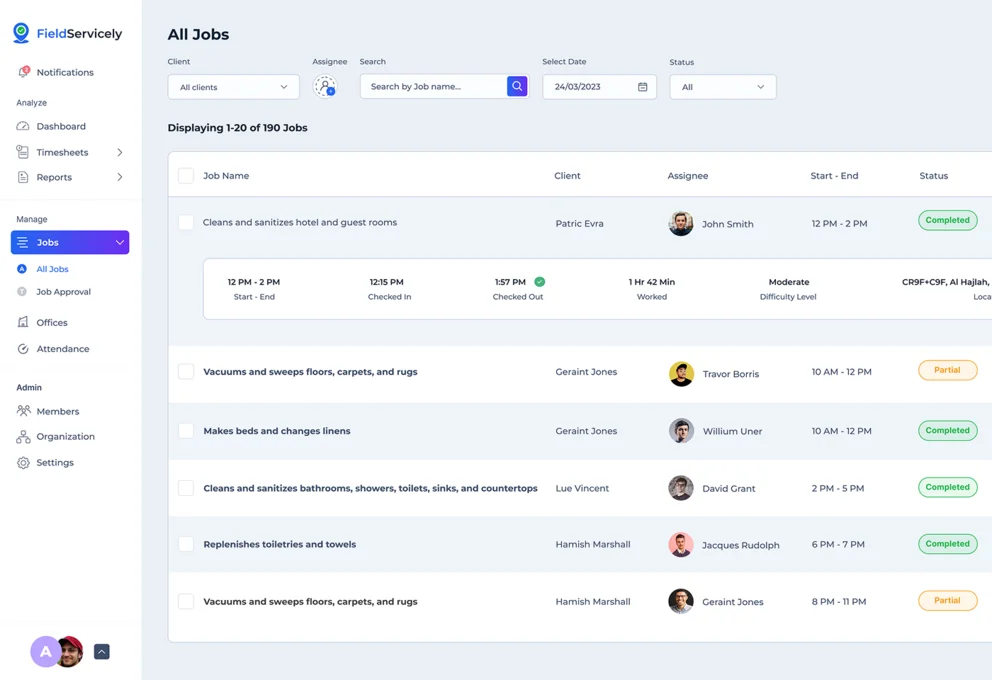
Free Time Clock with GPS Tracking Software
Record employee work hours and capture precise location
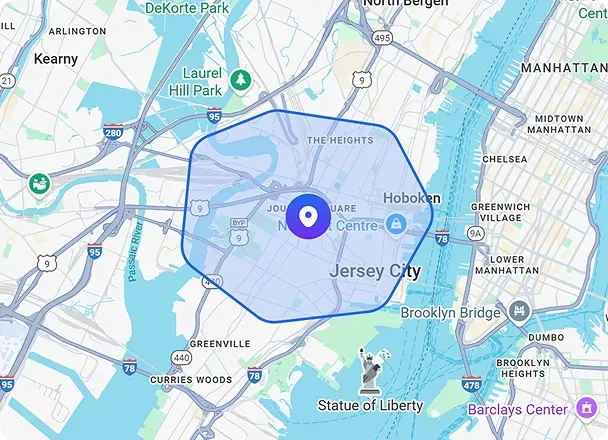
Geofencing
Set virtual job site boundaries so employees can clock in only at approved locations.
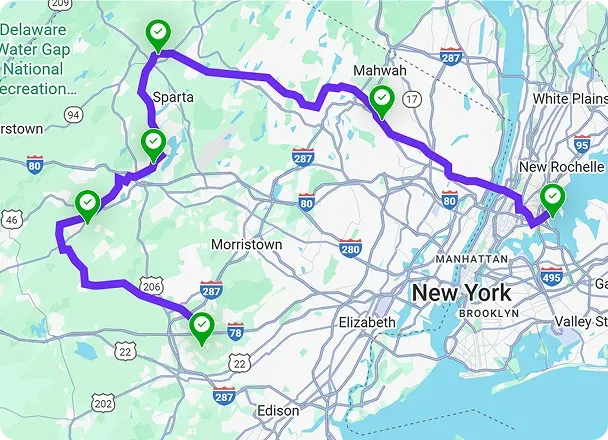
GPS Tracking
Monitor live driver locations on an interactive map to verify routes and ETAs.
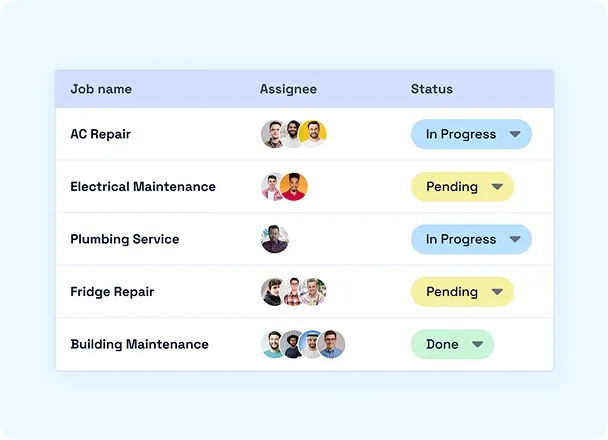
Job Management
Collect Proof of Service with photos, notes, and e-signatures from the job site.
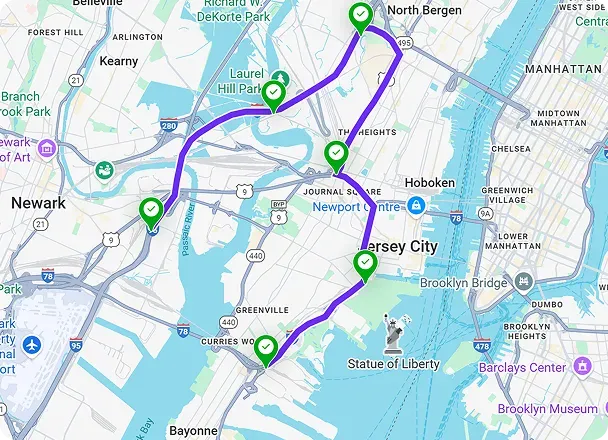
Route Optimizer & Planner
Auto-generate the most efficient multi-stop route based on real-time data.
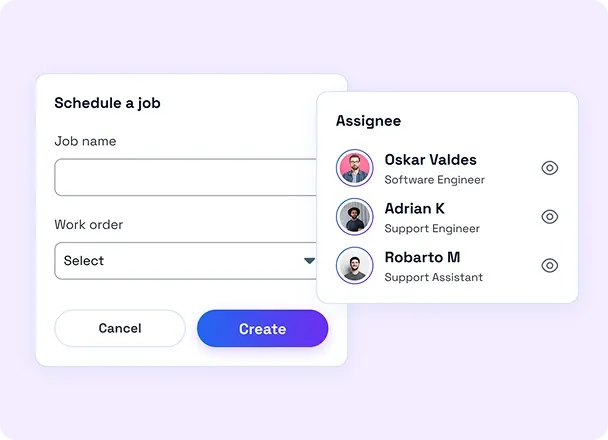
Scheduling
Assign tasks to open calendar slots to get the right tech to the right job.
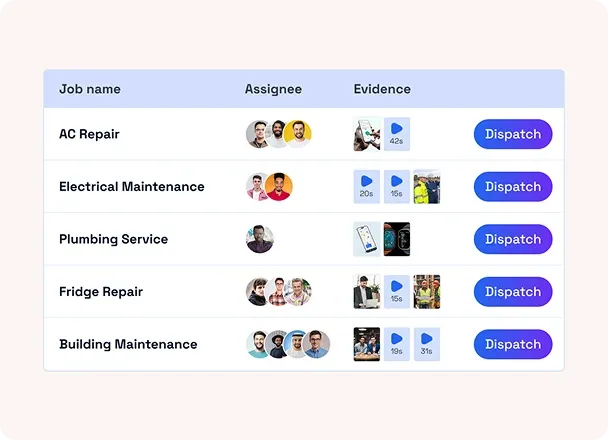
Dispatching
Send job details directly to drivers' mobile apps for instant schedule updates.
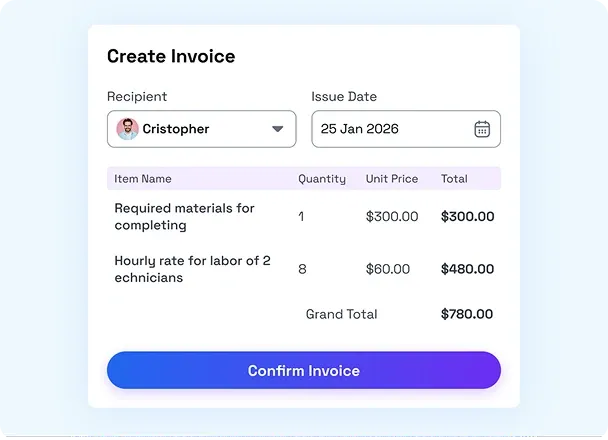
Payroll & Invoicing
Automatically convert completed job data into professional invoices.
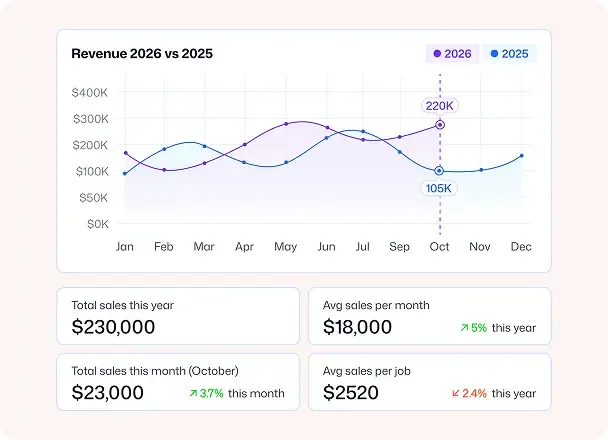
Analytics & Reporting
Track key performance indicators (KPIs) to find scope to improve efficiency.
How it Works
Get Started with 100% Free GPS Time Clock in 3 Simple Steps
Invite Employees & Assign Jobs
Send email invites to your employees and have them download the FieldServicely mobile app.
Start GPS Time Clock
As soon as your workers step into the approved destination, the app automatically registers their attendance
Use Time Clock with GPS Tracking to Easily Verify Work

Michael T.
Cleaning Operations Supervisor
Verifying work used to mean a lot of message digging and then puzzling them together. With FieldServicely, we just check the GPS-stamped clock-in, and everything is clear. This transparency helped us reduce constant status checks by 30%.
FAQS
Frequently Asked Questions about GPS Time Clock
Does FieldServicely’s GPS work offline?
Yes. Offline clock-ins are supported and sync when the device is back online.
Does FieldServicely's GPS time clock track the field workers' location when clocked out?
No, FieldServicely does not track field workers' location when clocked out. It respects the private life of every field employee.
Does the geofencing feature prevent off-site clock-ins?
Yes, the geofencing feature blocks anyone trying to clock in from a location that is not approved by the employer or organization.
What’s the best geofence radius for a job site?
The best geofence radius for a job site is usually 330 to 500 feet. In meters, that is 100 to 150. This creates the sweetspot for accuracy and solves the GPS drift problem.
Does FieldServicely drain too much phone battery?
No, FieldServicely is surprisingly lightweight and uses minimum system resources. So the likelihood of draining too much battery is not a thing. However, as it constantly uses GPS services on your phone, expect some drop in battery percentage.
Is FieldServicely only a time clock?
No. You can also manage jobs, scheduling/dispatch, GPS tracking/route maps, and job evidence.
The Ultimate Guide to GPS Time Clock Software
This guide answers all your questions and queries on field service management solutions. Get a firm grasp on field employees management and performance optimization techniques for your entire team.
Ultimate Guide to Employee Time Clock App with GPS
|
FieldServicely
What is a GPS Time Clock?
A GPS time clock is an employee time tracking app that records clock-ins and clock-outs. Also, it attaches a GPS location stamp to each check-in. Then it turns those punches into timesheets you can review, approve, and send to payroll. It matters the most when employees work across different job sites.
Why Companies Use GPS Time Clocks?
Companies use a GPS time clock because they need location-based attendance they can trust. A simple clock-in and clock-out time is not enough when teams work across job sites and move all day.
- Managers use a mobile GPS time clock app to stop off-site punches. When every clock-in includes a GPS location stamp, it becomes much harder for someone to clock in from home or a parking lot.
- Teams choose a geofence time clock to enforce approved locations. A geofence draws a virtual boundary around a job site, so the app can block clock-ins outside the work zone and reduce early punches.
- Payroll teams use GPS time tracking to cut down manual fixes. Automatic timesheets pull in clock-ins, breaks, and clock-outs, which helps them approve faster and avoid payroll errors.
- Operations leaders use an employee time clock app with GPS to manage multi-location crews with less checking in. Location history and site-level time logs help them see where crews worked and how long each stop took.
- Companies also want proof of work for every job. GPS time clocks make it easy to show who worked which job, at what time and location, and for how many hours—useful for customer questions, invoicing, and audits.
- Many businesses pick a GPS clock for time synchronization because field work happens in bad signal areas. An app with offline time tracking keeps clock-ins working, then syncs punches when the phone reconnects.
- Fewer payroll fixes, cleaner approvals, and better job-site proof all contribute directly to the GPS time tracking ROI.
- Finally, companies use GPS time card applications to keep attendance fair. Clear rules, clean records, and a solid audit trail reduce disputes and protect both the business and the employee.
These are the key benefits of a GPS time clock that inspire people to go for a dedicated system.
Who Should Use the Time Clock App with GPS?
GPS time clocks work best for teams that don’t start and end their day at one office. If your employees clock in from job sites, customer locations, or routes, a GPS time clock with gps tracking system gives you location-stamped punches you can trust. It also keeps timesheets clean when people move between sites.
Field service businesses get the most value from a mobile time clock with GPS. HVAC, plumbing, electrical, pest control, cleaning, and maintenance teams can clock in and out from the field while the app records GPS location data. That way, you stop “I was there” arguments and speed up approvals.
Construction crews benefit when job sites change often. A geofence time clock lets workers clock in only from approved locations, so you cut early clock-ins, off-site punches, and time theft. You also get job site time tracking that makes job costing easier.
Multi-location operations need a GPS employee time clock to stay consistent. If you run teams across branches, cities, or regions, one app standardizes clock-ins, breaks, and clock-outs across every crew. Then payroll runs with fewer edits and fewer disputes.
Route-based teams need more than a simple punch clock. Delivery, field sales, inspectors, and security patrols often stop at many locations in a day. A GPS time tracking solution with location history helps you confirm where work happened without constant calls or check-ins.
Remote and low-signal job sites need offline time tracking. Rural jobs, basements, and new builds can break regular attendance tools. An offline GPS time clock captures punches and syncs them later, so you don’t lose time records.
Teams that bill by job need proof of work, not just hours. Customers and auditors may ask who worked which job, at what time and location, and for how long. Location-based attendance with a clear audit trail gives you verifiable records for invoicing, payroll audits, and dispute-free approvals.
A time tracker with GPS still fits office-heavy teams, if they use field staff too. Many businesses have a small admin team and a large mobile crew. A mobile GPS time synchronization app lets the field team clock in on-site while the office team approves timesheets from a central space.
How Does a GPS Time Tracking App Work?
A time tracker with GPS starts capturing time when someone clocks in, and where it happens. It turns a simple clock-in/clock-out into location-based attendance you can trust. This helps you stop off-site punches and keep timesheets clean.
Step 1: You set the job sites and rules. You add each job site as an approved location and draw a geofence around it. Then you set rules like clock-in windows, break tracking, and who can edit time.
Step 2: Field employees clock in on their phone. They open the mobile time clock app on iOS or Android and tap Clock In. The app saves time and adds a GPS location stamp at the same time.
Step 3: The app checks the location before it accepts the punch. If the employee stands inside the geofence, the clock-in goes through. If they stand outside the approved area, the app blocks the punch or flags it for review.
Step 4: The app captures proof for each punch. You can require a selfie at clock-in and clock-out so you can verify who checked in. The time clock with GPS keeps the photo, time, and location together as a clear audit trail.
Step 5: Time clock with GPS tracking software can monitor breaks and clock-outs the same way. Employees tap Start Break, End Break, and Clock Out in the same app. Each event records a timestamp and location data, so you see the full shift without guesswork.
Step 6: Offline job sites still get accurate punches. The app records clock-ins and clock-outs even when the site has a weak signal. Then it syncs the punches when the phone reconnects, so you don’t lose attendance data.
Step 7: Timesheets build automatically. The system turns punches into automatic timesheets and totals regular time, breaks, and overtime. This gives you payroll-ready timesheets without manual cleanup.
Step 8: Managers review and approve fast. Supervisors check exceptions like early punches, missed punches, or off-site attempts. Then they approve timesheets with confidence because every entry includes proof.
Step 9: You export clean time to payroll and reporting. You use approved timesheets to run payroll, job costing, and team reports. You also keep a verifiable record of who worked which job site, at what time, and for how many hours.
What is the Difference Between GPS Location Tracking & Geofencing?
GPS location tracking shows where an employee clocked in and clocked out. It adds a location stamp (GPS coordinates) to each punch so you can verify the place and time. This helps you review attendance, fix disputes, and confirm job site visits.
Geofencing controls where employees can clock in and clock out. You draw a virtual boundary around an approved location, like a job site, and then the app allows punches only inside that zone. This blocks off-site punches and stops early clock-ins from the wrong place.
GPS tracking answers: “Where did the punch happen?” Geofencing answers: “Should this punch be allowed here?” Use GPS stamps for visibility and proof, then use geofence rules to enforce attendance at the job site.
Many field teams use both because they solve different problems. GPS tracking gives you a clear record, while geofencing prevents bad punches before they hit the timesheet. Together, they reduce time theft and help you generate payroll-ready timesheets with fewer edits.
Why the Proof of Work for Every Job Matters?
Proof of work matters because field time often turns into payroll, invoices, and job costing. It also reduces disputes because it replaces guesswork with clear records. GPS location data plus a photo-verified clock-in data shows who clocked in, when they did it, and where they were. That makes approvals faster and stops back-and-forth edits on timesheets.
Proof of work protects you during audits because auditors want facts. Just so you know, insurance and payroll audits often check if hours match the real job locations and dates. A clean audit trail with timestamps, geofencing rules, and attendance logs gives you a verifiable record.
That said, evidence-based work always helps operations teams manage a mobile workforce across multiple job sites. You can see which crew worked which site, for how many hours, and whether they followed the schedule. That visibility helps you fix problems early instead of discovering them on payday.
Last but not least, with proof of work, customer trust increases because they can see what is done before approving invoices. When you can show job-level time logs with GPS location stamps, you avoid billing delays.
Must-Have Features Checklist for a Time Clock with GPS App
A GPS time synchronization app should do more than record hours. It should verify where the clock-in happened, who did it, and which job site it belongs to. Use this checklist to spot a tool that actually reduces payroll errors and time disputes.
1. GPS location stamps on every punch
A good app must attach a GPS location stamp to every clock-in, break, and clock-out. This makes attendance location-based, not guesswork. It also helps you confirm punches across multi-location days.
2. Geofencing for approved job sites
A strong geofence time clock lets you set approved locations around job sites. It should block off-site punches or at least flag them fast. This is how you stop early clock-ins and “clocking in from home.”
3. Photo or selfie verification for identity
A reliable time card app with GPS should support photo-verified clock-ins when you need stronger proof. This feature cuts down buddy punching because the app confirms the person, not just the phone. It also gives managers clear proof during disputes.
4. Mobile time clock on iOS and Android
A real-world workforce uses different devices, so you need iOS and Android support. The app should keep clock-in and clock-out simple for field employees. If people struggle to punch in, your timesheets fall apart.
5. Offline time tracking with auto-sync
A GPS time clock must work on remote job sites with a weak signal. It should allow offline clock-ins and sync the data when the phone reconnects. This keeps attendance consistent without gaps.
6. Break, meal, and overtime rules
A serious time clock must handle breaks, meal time, and overtime rules. These rules protect payroll accuracy and reduce manual edits. They also make approvals faster because the logic is already applied.
7. Timesheet approvals with an audit trail
A good app must let managers review and approve timesheets in a clear flow. It should record edits with a simple audit trail so you can see what changed and why. This protects you during payroll disputes and compliance reviews.
8. Alerts for missed punches and exceptions
A strong system must catch problems early with missed punch alerts and exception flags. It should highlight off-site punches, unusual times, and overtime spikes. This helps ops teams fix issues before payroll runs.
9. Job and site reporting that answers real questions
A GPS time clock should show time by job site, team, and employee. It should answer basic questions fast, like “Who worked where today?” and “How many hours did this job take?” Clear reporting turns time tracking into better decisions.
10. Payroll exports or integrations
A tool is not “payroll-ready” if it traps your data. It should export timesheets cleanly or integrate with your payroll process. This saves admin time and reduces pay errors.
11. Privacy controls and tracking boundaries
A trustworthy system should explain when it tracks location and when it stops. It must support clear settings so employees don’t feel monitored off the clock. Privacy clarity improves adoption and lowers pushback.
12. Role-based access and admin controls
Enterprise teams need controls that limit who can view locations and edit time. The app should support roles like admin, manager, and employee with clear permissions. This keeps your attendance data secure and consistent across regions.
Setting Up Geofences the Right Way (Best Practices)
Here's how to set up geofences with best practices:
- A geofence is a virtual boundary around a job site that controls where employees can clock in and clock out. Start by mapping your real work areas first, because a clean job site list makes every GPS time clock rule easier to manage. Then set one geofence per site so your attendance stays tied to the right location.
- Choose a geofence radius that matches how people actually enter the site. Set a wider boundary for large outdoor areas like construction sites, and use a tighter boundary for small storefronts or offices. If the radius is too small, your app may block valid clock-ins; if it’s too big, you may allow off-site punches.
- Decide how strict you want “approved locations only” to be. Allow a short clock-in window around shift start if crews arrive early for parking, loading, or site check-in. This reduces missed punch alerts without weakening location-based attendance.
- Set clear rules for multi-location days. Let techs clock in at one job site, then clock out and clock in again when they move to the next site. This keeps GPS location stamps clean and helps you track time by job site.
- Plan for real-world exceptions instead of letting managers edit timesheets later. Add a supervisor override for cases like emergency callouts, temporary sites, or wrong-site dispatch. Keep an audit trail on overrides so payroll approvals stay simple and dispute-free.
- Make offline work part of your setup from day one. Tell crews what to do when they lose signal, so they don’t stop using the mobile time clock. Choose a GPS time clock tool that saves punches offline and syncs them when the phone reconnects.
- Write one simple employee GPS tracking policy and repeat it during rollout. Say when tracking happens, what data you collect (time and location stamps), and who can view it. This builds trust and stops the “are you tracking me off the clock?” question before it slows adoption.
- Test your geofences with a small group before you roll out to everyone. Clock in and clock out at the edges of the job site to confirm the boundary works in real conditions. Then adjust the radius, not the rules, to fix most accuracy issues.
- Review your geofence list every month if you manage rotating job sites. Remove old sites and add new ones so employees don’t clock in under the wrong location. A clean list is the fastest way to keep automatic timesheets payroll-ready.
GPS Accuracy, Offline Work, and Troubleshooting
- GPS accuracy depends on signal quality. Phones get the best location stamps outdoors with a clear view of the sky. Tall buildings, indoor work, tunnels, and heavy tree cover can reduce accuracy, so the pin may land a little off.
- Geofence time clock rules can feel too strict when the radius is tiny. A small geofence works great in open areas, but it can block valid clock-ins when GPS drifts. Hence, use a practical geofence radius and test it at the job site. Then tighten it only after you see stable results.
- Clock-ins fail most often when the phone can’t get a clean location fix. Low power mode, weak GPS, or location services turned off can stop the app from capturing the GPS location stamp. Turn on Location Services, allow Precise Location, and keep Battery Saver off during clock-in/out.
- Offline work happens in the real world, so your employee time tracking app with GPS must handle it. Remote job sites, basements, and new builds often have poor data coverage. Use offline clock-ins and let the app sync punches automatically when the phone comes back online.
- People worry about missing punches when the connection drops mid-shift. A good mobile time clock saves the punch event first, then uploads it later. If an employee sees a missed punch alert, have them refresh the app and check the timesheet before editing anything.
- Location stamps can look wrong if the phone uses rough location sources. Some devices switch between GPS, Wi-Fi, and cellular signals, and that can shift the clock-in location. Ask employees to step outside for 10–15 seconds before clocking in if they work indoors or near dense structures.
- Battery drain usually comes from always-on tracking, not from a quick punch. Clock-in/clock-out location capture uses far less power than continuous location history. If you enable live location or route history, set clear on-the-clock rules so the phone doesn’t work harder than needed.
- Troubleshooting starts with permissions, not with blaming the app. Most issues come from disabled location permission, blocked background activity, or an outdated OS version. Check app permissions, update the app, restart the phone, and retry the clock-in at the job site.
- Disputes get easier when you store proof of work with the punch. GPS location data plus a timestamp helps, but photo verification and job site assignment make the record stronger. Review the punch trail in one place so payroll approvals stay fast and clean.
Privacy, Consent, and Policy for Using GPS Time Clock
- GPS time clocks collect location data, so you need a clear privacy plan before you roll it out. You should tell employees what the app tracks, when it tracks, and why you track it, because a simple policy prevents distrust and protects your company. Many employee concerns come from common GPS time tracking myths, not from how a properly configured system actually works.
- A GPS timecard should only track work time. Set expectations that GPS location stamps support clock-ins, breaks, and clock-outs, not after-hours monitoring. This keeps location-based attendance focused on payroll accuracy and job site verification.
- Consent works best when you make it specific and easy to understand. Ask employees to acknowledge the GPS time tracking policy before they use the mobile time clock app. Put the key points in plain words: what gets collected, who can see it, and how long you keep it.
- A good policy explains exactly what proof of work means. Say that the system records who clocked in, which job site they worked, the time, and the location. This reduces payroll disputes because you can review an audit trail instead of debating memories.
- BYOD needs extra clarity because you track location on a personal phone. Tell employees that the GPS time tracking app only records location data during clock-in/out events or on-the-clock tracking windows you define. Also, tell them how they can pause tracking when they end their shift, if your setup allows it.
- Geofencing can reduce privacy risk because it narrows location tracking to approved work zones. Define job sites as authorized locations and block off-site punches instead of tracking all-day movement. This approach gives you compliance and control without over-collecting data.
- Access control matters as much as consent. Limit location history and GPS attendance reports to managers who approve timesheets or supervise field employees. Use roles and permissions so that not everyone can view location stamps.
- Edits and overrides need strict rules. Require a reason when someone edits a punch, and keep the original timestamp and GPS record in the audit trail. This makes your timesheets defensible during payroll audits and customer disputes.
- Data retention should match a real business need. Keep GPS timesheet records long enough to handle payroll, invoicing, and compliance reviews, then delete them on schedule. This reduces risk and keeps your system clean.
- Training is part of privacy because confusion creates complaints. Show employees how clock-in rules work, how the geofence time clock checks approved locations, and what the app records during breaks and clock-outs. When people understand the system, they follow it.
- Your policy should end with one simple promise. Say you use GPS location data to verify attendance and proof of work. So they know that you are not spying on employees. Then back it up with settings that limit tracking, clear approval workflows, and transparent reporting.
How to Choose the Right GPS Timesheet App?
Start with your real goal: You should expect much more from time clock apps with GPS, apart from just tracking hours. They should help you stop time theft, cut payroll errors, and keep attendance clean across job sites.
Check how it captures location: Your GPS time clock software should add location stamps to every clock-in and clock-out. If you manage field employees across multiple locations, you also need location history that makes sense at a glance.
Choose a geofence time clock if you run job sites: Geofencing lets you set approved locations so people can’t clock in from home or the parking lot across the street. Look for flexible geofence radius settings so that you can tune it for tight urban sites or wide outdoor areas.
Make sure it proves who clocked in: GPS alone tells you where a punch happened, but it doesn’t confirm who did it. Pick a GPS time card app with photo verification or selfie proof if buddy punching is a real problem.
Don’t ignore offline time tracking: Many job sites lose signal, especially in basements and remote areas. Choose an app that supports offline clock-ins and syncs punches when the phone reconnects.
Look at the timesheet workflow: The best tools auto-build timesheets with breaks and overtime rules already applied. You should be able to review, approve, and lock edits so payroll doesn’t turn into a weekly cleanup job.
Ask how it handles multi-site days: Field teams often hit two, three, or more locations in one shift. Pick a mobile time clock that keeps job-site time logs organized by day, employee, and location.
Treat reporting as a must-have: You need simple reports that show hours by team, job site, and date range. If you do job costing, look for time-to-job linking so you can tie labor hours to each work order.
Confirm payroll export and integrations early: A GPS time clock should export payroll-ready timesheets without messy formatting. If you use a payroll system today, check if the export fits your process before you roll it out.
Check privacy controls before you deploy: Employees will ask if the app tracks them off the clock. So, choose a tool that makes tracking rules clear, supports consent, and policy needs. Then again, it should also let you control who can view location data.
Test it like a real workday: Run a short pilot with one crew and one job site. If clock-ins, geofences, approvals, and reports feel smooth, you’ve found the right GPS time clock for your field workforce.
