- Route optimization and planning
I Tested Google Maps Route Optimization in 2026 and Here’s the Truth
Updated on 20 Jan 2026
Jump to
Summary

Google Maps route planning allows 10 total stopping points per trip. So you must split routes once you hit 10+ stops.
For ≤ 10 stops, add stops in Directions, drag to reorder, and use “Depart at/Arrive by” to optimize routes with Google Maps.
Build a stop list, cluster into 2–3 areas, and create Route A/B/C with 8–10 stops per route for upto 25 stops.
For 25+ stops or multiple techs, plan by territories and time windows. Then distribute jobs so each person stays under 10 stops.
I always use Google Maps to go to Point B from Point A as fast as possible. And it always delivers, navigates me turn by turn without any problem.
That brought me to the multi-stop route optimization. Google Maps let me build the route until I added one more stop, and it refused to accept it. Later, I found out 10 points in a trip is the limit.
The thing is, Google Maps was never intended to handle situations that field service tech, delivery drivers, or other field operators experience every day. But for personal use, it’s a great free tool.
Fast forward to today, and I will share exactly how I optimize routes using Google Maps. You’ll learn how to set up a clean multi-stop route, reorder stops the right way, use traffic, and avoid the mistakes that waste time.
How to Optimize Route with Google Maps
Scenario 1: I Have 10 or Less Stops
Google Maps supports multiple destinations on the free app and lets you add a total of 10 stops for driving, walking, and cycling. It includes one start point and up to 9 visiting points.
Here are the exact steps to optimize routes up to 10 stops on your phone (Android/iPhone):
- Open Google Maps and tap Directions. Enter your start point and final destination.
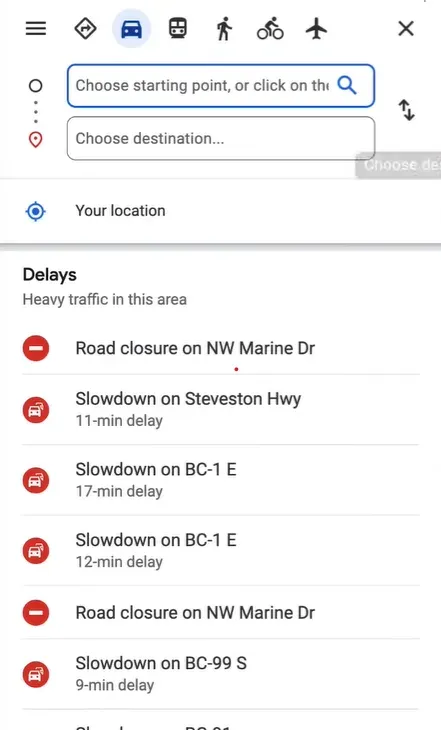
- Tap Add stop and enter each extra stop one by one. Keep the total within the 10-point limit so GMaps does not break your plan.
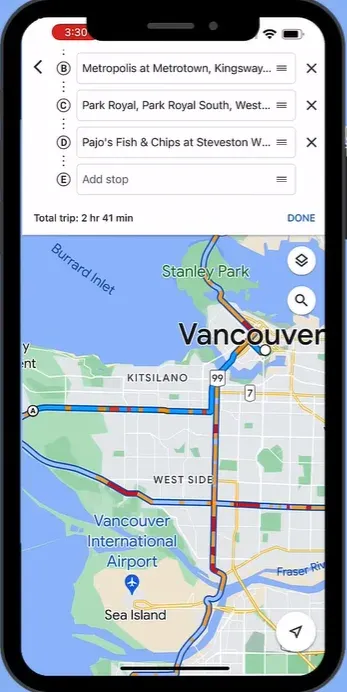
- Reorder stops before you start navigation. To do this, drag the stops into the best order, so you cut backtracking.
- Set Leave or Arrive when timing matters. Maps changes the travel time estimate based on expected traffic at that time.
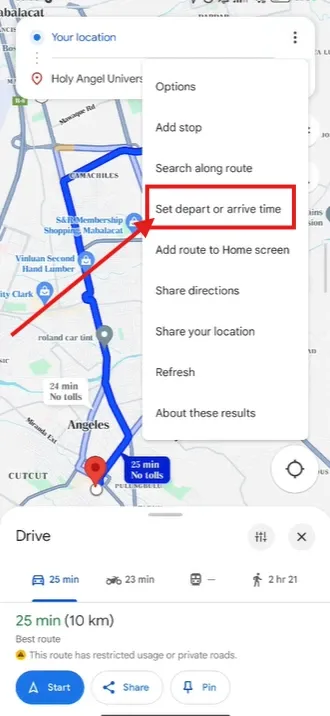
- Compare the grey routes and pick the one that fits your goal. Google shows the best route in blue and alternatives in grey.
- Start navigation and watch for live reroutes. Maps uses real-time traffic info and can update your route if it finds a better option.
Here’s how to optimize routes for 10 stops using Google Maps on a desktop:
- Open Google Maps on your computer and click Directions. Add your start point and destination.
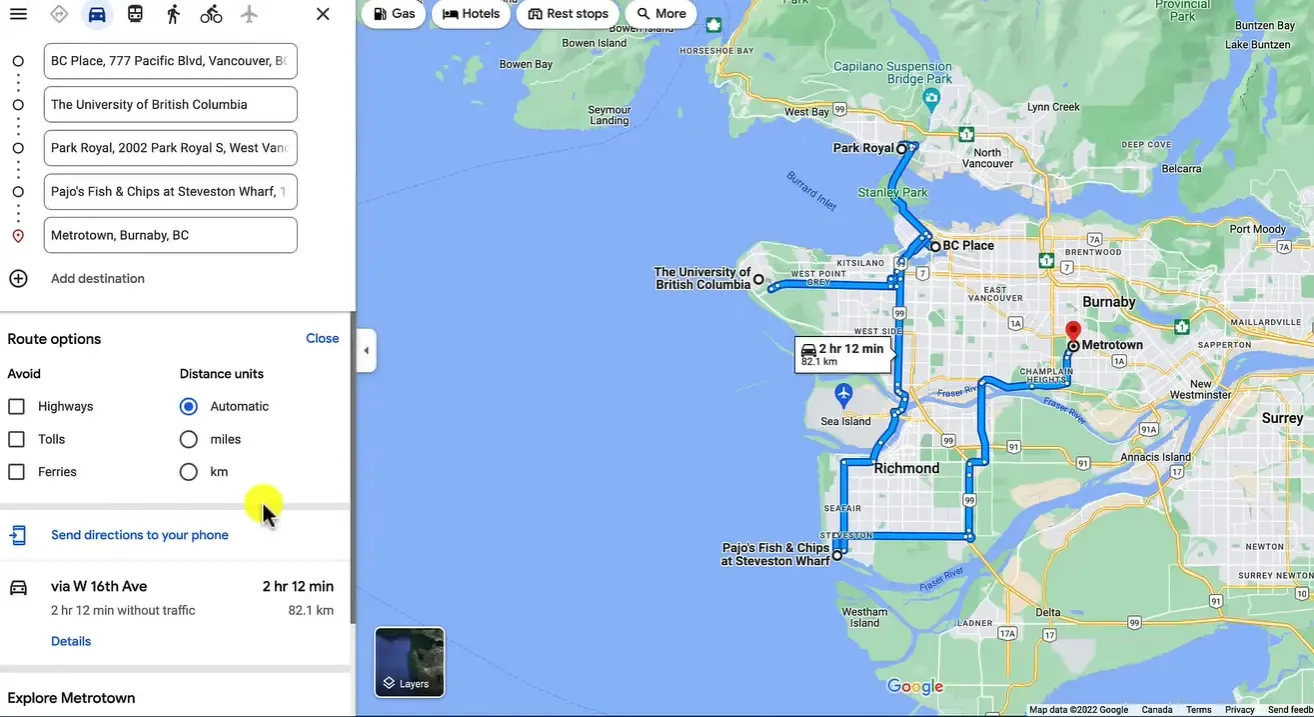
- Then click Add destination to add more stops.
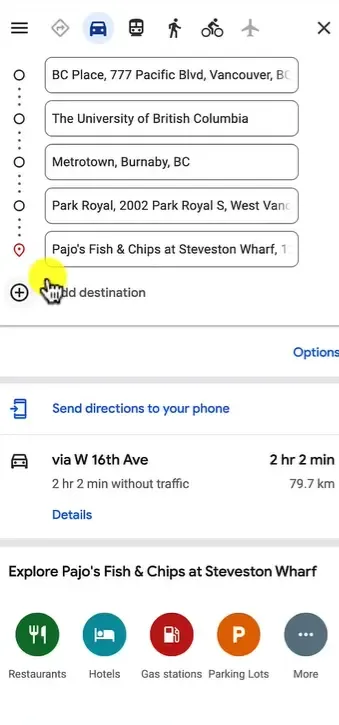
- Drag the stops to reorder them before you leave. Save the final route and send it to your phone if you wish to drive from your phone.
My Experience
I planned a 7-stop day on Google Maps. As Google Maps supports multiple stops, I can plan the whole short route in one trip.
So, I opened Google Maps, tapped Directions, and typed my first stop and my last stop. Then I tapped Add stop five times to add the other places. Then I fixed the order by dragging the stops up or down. I stopped when the line on the map stopped going back and forth across the same main road.
I had one stop with a strict time, so I used the Arrive by feature. I chose the time, checked the route options, and picked the route that avoided the road with the most traffic. Even when I had to ride a little longer. I also kept the navigation turned on
I kept navigation on while I drove. I did this because traffic can change, and Google Maps can update the route and show a faster way.
Verdict
In my experience, I found this method works best for a solo driver doing errands, deliveries, sales visits, or a small service route with 10 stops or fewer.
Stop the manual work
Get smart routing now
Scenario 2: I Have 11 to 25 Stops
Google Maps caps a route at 10 stops, so you can’t put 15 or 20 stops into one single optimized route. It still helps a lot here, but you must split your day into 2–3 smaller routes and then order the stops inside each route.
Here’s how to optimize 11–25 stops with Google Maps:
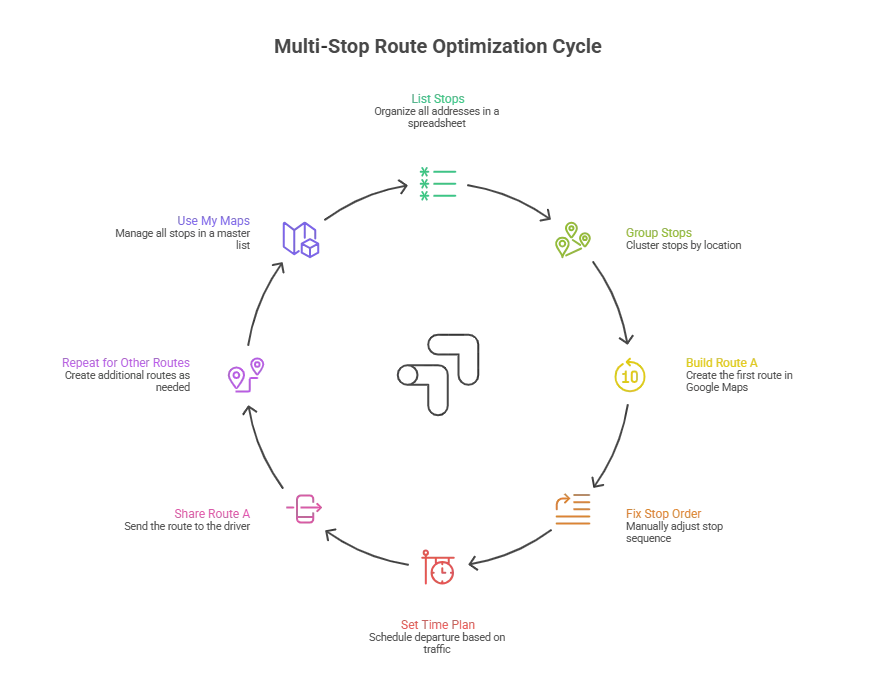
- List every stop in one clean place. Put all addresses in a spreadsheet so you can see them at once and avoid typos.
- Group your stops into 2–3 clusters before you open Google Maps. Split by neighborhood, zip code, or “same side of town” so you reduce backtracking.
- Keep each cluster at 8–10 stops max. Plan for a start point and an end point, and leave room for one surprise stop or delay.
- Build Route A in Google Maps with up to 10 stops. Tap Directions, add the first stop, then keep adding stops until you hit the route limit.
- Fix the stop order manually. Drag stops into a better order so you don’t zig-zag across the map, then check the ETA.
- Set a time plan for traffic. Set Depart at so the route reflects real traffic.
- Share Route A with the phone you will drive with. Send the link to yourself or your driver so nobody can retype addresses.
- Repeat the same steps for Route B and Route C if needed. Treat each route as one shift, like morning and afternoon stops.
- Use Google My Maps as your master list when your stop list feels messy. Import your spreadsheet into My Maps. This way, you can see all stops on one map, then use layers like AM and PM.
- Keep your My Maps plan simple, so it stays usable. Use up to 10 layers, such as AM, PM, urgent, callbacks, and don’t over-design it.
The Reality of Google Maps 10+ Stops Route Optimization
For this test, I had 18 stops on my list, and Google Maps blocked me the moment I tried to add the 11th stop. So I worked around this problem by splitting my day into two clusters.
One is 9 stops in the northern area before lunch, and 9 stops in the southern area after lunch. I put two must-hit time window jobs at the top of each cluster, because a late arrival ruins the whole day.
I built route A with 9 stops and then dragged the stop order until the route stopped crossing the same main road repeatedly. Next, I repeated the same process for Route B.
My Honest Takeaway
Google Maps works best when you keep each route under 10 stops and manually control the order. And Google My Maps helps you manage a bigger list, but it still works like a planning board. It never felt like a true route optimizer to me. If you run 11–25 stops every day, or if you dispatch techs/drivers, you will feel the time loss fast.
Automate your route planning
Try for free - No credit card required!
Scenario 3: I Have 25+ Stops
10+ stops is already a hassle on Google Maps; 25+ stops make things further complicated. It becomes mathematically impossible for a human to handle this efficiently.
Why 25 Stops is the Breaking Point
When you look at 25 dots on a map, your brain tries to draw the shortest line connecting them. This is a famous math puzzle called the Traveling Salesperson Problem.
- For 5 stops, there are 120 possible route combinations. So, it is easy to guess the best one.
- With 25 stops, the number of possible stop orders reaches the quadrillions+ range.
No matter how smart you are, your brain cannot calculate the perfect route order for 25 stops. You will surely miss a shorter path and drive more miles.
For this reason, I would say it’s a no-go for Google Maps. Try to use a dedicated route optimization tool if your business can afford it. It will make your route optimization strategy efficient. However, there are people out there who rely on a free tool to get their job done.
To plan a route with such a number of stops, you need a clever approach. The best thing to do here is create batches.
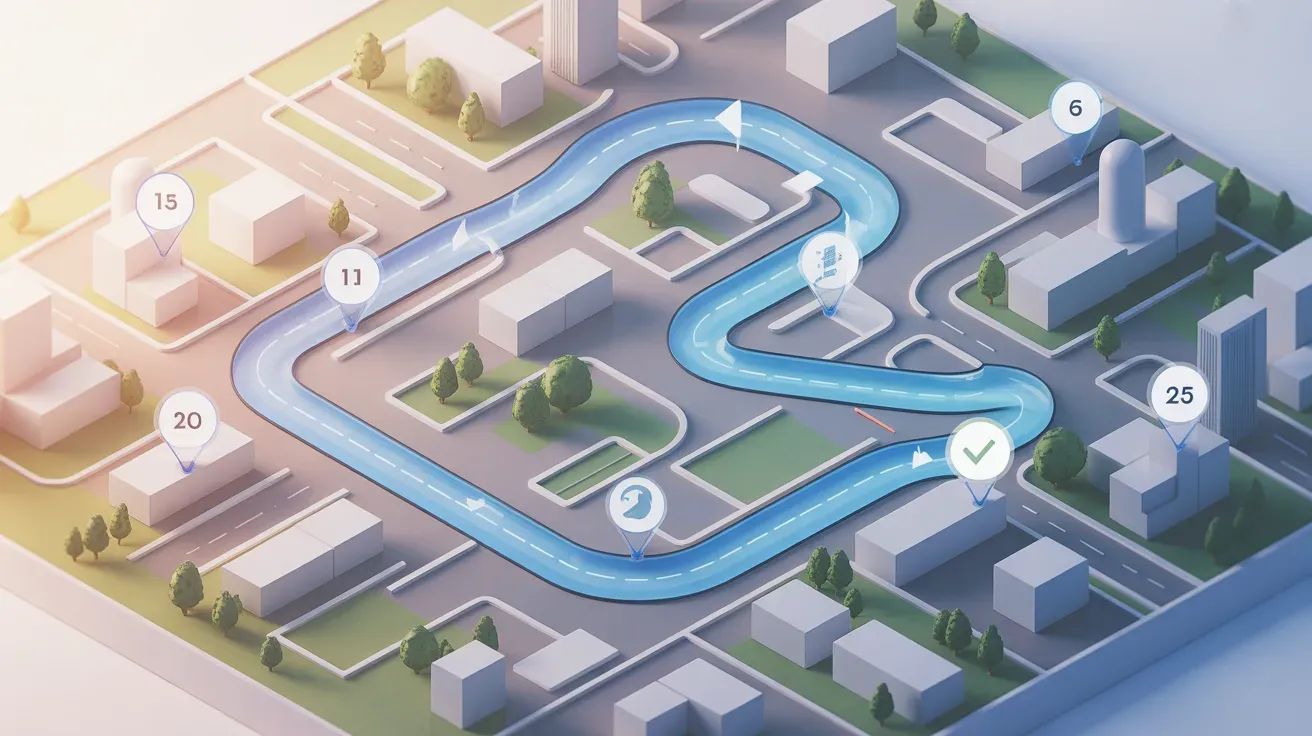
Here’s the workaround for optimizing 25+ stops on Google Maps:
Write every stop in a master list: Put each address, note, and phone number in a sheet so you don’t lose track when the day changes.
Mark time windows and urgent jobs first: Tag stops like “10–12” or “before 5,” because stop orders must follow time windows.
Divide the whole list into territories: Group stops by area, like Zone A/Zone B, so you don't keep crossing the city over and over.
Balance the workload per territory: Keep each territory realistic by counting drive time and job time.
Turn each territory into 2–4 short routes: Keep each route at 8–10 stops so Google Maps accepts it.
Lock the stop order inside each route: Drag stops until the path looks clean, then check the total ETA before you save it.
Name each route and save the link: Store the links in your notes or spreadsheet so you can open the right route fast.
Run the day in phases: Finish Run 1, then open Run 2, because 30 stops need control and management.
How it Feels Handling 25+ Stops Route in Google Maps
After trying out the workaround, Google Maps felt exhausting to me. All the manual work from putting down stops to planning them in multiple waves isn’t easy. It becomes a mess pretty quickly. You lose time managing routes rather than on the road.
Handle unlimited stops with ease
Scenario 4: I Manage Drivers/Techs
Team dispatching is not the ideal use for Google Maps. Navigation, however, is top-notch. It works well with turn-by-turn directions, route link sharing, and knowing where a crew is.
For example, I ran a day with 5 techs and 26 jobs, and three jobs had tight time windows. I assigned those three jobs first, because missing them would break the whole schedule. I also kept each tech under 10 stops, and I split the city into two sectors. I shared route links in chat and shared Google Maps’ location to confirm who got delayed in traffic.
That said, I understood one thing very clearly. That is, Google Maps does not optimize the team plan against real constraints. That is why routing software exists. And it’s also why Google ships a separate Route Optimization API for fleet-style routing.
Even after that, if you want to keep using Google Maps for the dispatch team, follow the splitting technique (scenario 3) I shared earlier in this article.
Limitations of Google Maps Multi-Stop Route Optimization
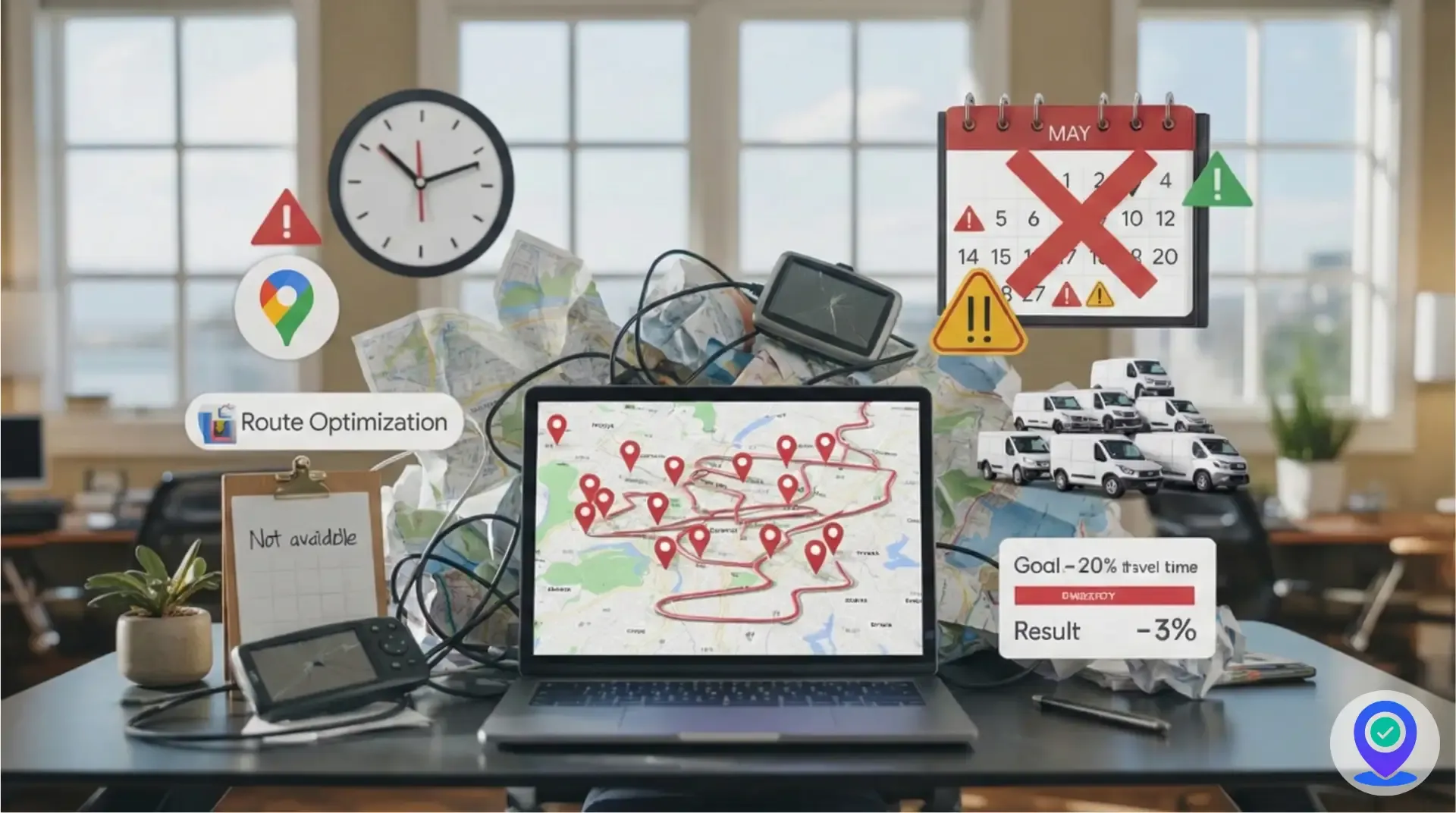
Restrictive and Time-consuming
Google Maps has a hard limit of 10 stops. It hits this limit fast whenever you run deliveries or service calls all day. It then forces you to split one day into two or three separate routes. This adds extra planning time and creates a risk of missing a stop.
Not a True Route Optimization Tool
You need to sort the stops' order manually using Google Maps. So the best route depends on guesswork. Google Maps can feel fine for 6–8 jobs, but it breaks down when you try to plan 12–20 customer visits.
Difficulty with Time Windows
Google Maps cannot plan around time windows for each stop. The Route Optimization API shows time windows as a core routing constraint. However, the consumer Maps app gives you no place to set a specific delivery status. For example, deliver between 5:30 and 6:00 for each address. As a result, Google Maps gives ETAs, ignoring real appointment rules, like “this customer only accepts visits before lunch.”
No Scheduling
Creating schedules for breaks, shift end times, or job duration per stop is not possible using Google Maps. It only treats each stop like a pin you visit. For this reason, it fails to show time details, such as a 45-minute job completion plus 10 minutes for parking and check-in. This makes your day look shorter than it really is, especially for field service.
Cannot Scale with Demand
It is impossible to assign stops across multiple drivers or technicians on Google Maps. Plus, it has no fleet dispatching. This is a deal breaker for growing teams. As a result, Google Maps can not suggest to you which tech should take a job at a specific moment.
Fails to Deliver Optimization Goal
Google Maps gives you limited control over the optimization goal. It is designed to navigate you, rather than optimizing a day for on-time arrival, least miles, or highest priority jobs. Ergo, it struggles to fulfill real goals that include customer promises, SLAs, or priority jobs.
When You Need to Use a Dedicated Route Optimization Software
There are quite a few instances that will make you feel like you need a route optimization software. When:
You have more than 10 stops
A third-party route optimization software is needed the moment you realize Google Maps is holding you back. But how do you know that?
The telltale sign is that Google Maps can not do more than 10 stops in a single trip. That's the hard limit, plain and simple. So every time you need to plan more than 10 stops, try a dedicated routing software. This will save you time, effort on workarounds, and money.
Otherwise, you’ll keep splitting one route into many small ones. It brings issues like backtracking, missed ETAs, and wasted driving time. Problems like this become critical when stops are across different neighborhoods.
To Meet Time Windows
A dedicated route planner is essential when jobs come with time windows. The route planner handles them with ease and estimates the service time per stop in the plan. So you don't have to juggle it mentally.
To Run More than One Driver or Technician
Google Maps can show directions, but it does not manage workload balance, territory, or who should take which jobs as a system.
So use dedicated route management software when you assign jobs to two or more drivers/techs. It splits work by capacity, skills, and location so one tech doesn’t get overloaded.
Your routes change during the day
Route optimization software allows you to get same-day changes. For example, urgent jobs, cancellations, or “come later” requests. This is because Google Maps fails to re-order stops and re-assign work without rebuilding everything.
If Repeat Trips Drain Your Budget
One of the benefits of third party route planner is that you can reduce rework trips and avoidable dispatches. This is important as Aquant’s 2025 Field Service Benchmark Report says that 14% of truck rolls are unnecessary. That means teams burn time and fuel that can be avoided with better planning.
Delivery and last-mile costs keep rising
If your business involves deliveries, and costs start to rise each month, don't rely on Google Maps alone. FYI, DS Smith found that 84% of e-commerce businesses saw last-mile costs rise over the past 12 months. And 39% saw costs rise by more than 10%. So if you think "good enough" is going to save your business, you are wrong! To save your business, subscribe to a route optimization solution to protect margin with better stop orders
That being said, if you are still confused whether a third-party tool is worth it, let’s look at this quick comparison:
| Feature | Google Maps (Free) | FieldServicely ($9/month/user) |
|---|---|---|
Max Stops per Trip | 10 Stops (Hard Limit) | Unlimited |
Route Optimization | Manual (You drag & drop) | Automatic |
Time Windows | No (Ignores "Open until 5 PM") | Yes (Plans around open hours) |
Proof of Delivery | None | Yes (photos and signatures) |
Dispatching | Texting links to drivers | One-click send to driver app |
Best For | Personal jobs and below 10 stops | Businesses, field service & delivery teams |
Cut costs by 30%
See the better way forward
Use FieldServicely to Do Everything You Miss on Google Maps
FieldServicely adds the missing pieces to the serious multi-stop work. These are route optimization, scheduling, dispatch, and tracking. It also helps the moment you outgrow Google Maps’ 10-stop route limit.
Here are the key things you’ll finally be able to do coming from Google Maps to FieldServicely:
- Auto-generate the most efficient multi-stop route using real-time data. You can also group jobs by location and get recommendations for the best route sequence.
- FieldServicely lets you assign tasks to open calendar slots. That way, the route matches the day plan instead of living in a separate map tab. So you get more than mere directions.
- Sends job details straight to a driver’s or tech’s mobile app, so schedule updates don’t get lost in texts or calls. You can also dispatch emergency jobs to the closest technician, which Google Maps alone won’t manage for a whole team.
- See live driver locations on a map so you can verify routes and ETAs instead of guessing.
What Results Should You Expect?
You can save up to 40% on every service trip by cutting travel time and distance. Also, you can cut mileage by 30%, which is the kind of number you can track week to week.
So If you want Google Maps for navigation but need a system to plan, optimize, dispatch, and track multi-stop days, give FieldServicely a try.
Try FieldServicely #1 Field Service Management Software
Try for free - No credit card required!
Frequently Asked Questions
Is there a way to optimize a route on Google Maps?
Yes, you have to manually optimize the route on Google Maps. Just drag the stopping points to reorder the routes.
Does Google Maps have a route planner?
Yes, you can plan routes using Google Maps. You need to use the Draw a Line option and click on the points to create a route plan.
What is the Best Route Optimizer?
FieldServicely is one of the best route optimizers. It can automatically plan routes and find optimized paths using real-time traffic data and distance to the nearest technician.
Can Google Maps automatically optimize the stop order?
No. Google Maps creates the route in the exact order you type the addresses. You must manually drag and drop the stops in the list to "optimize" the order yourself.
How many stops can I add in Google Maps 2026?
You can add up to 10 stops in Google Maps for a single route. For stops more than than you must divide the route plan.
Is there a free route planner with unlimited stops?
Unfortunately, no. Most free route planners limit the number of stops, or they allow unlimited stops only for a short trial. If you need unlimited stops long-term, you usually need a paid plan, or you must split your route into multiple smaller ones.
What’s the simplest workflow for 30–100 stops?
The simplest workflow for 30-100 stops is to use a dedicated route optimization platform like FieldServicely. Such a tool will automatically optimize the route based on real-time data.
What to read next